Billing & Invoicing
Professional invoicing and payment management. Create professional invoices, track payments, and maintain accurate financial records for your tailoring business.
Getting Started with Billing
Invoice Overview
An invoice is a financial document that:
- Lists the services provided (tailoring work)
- Shows the amount due from the customer
- Specifies payment terms and due dates
- Provides your business contact information
- Serves as a receipt and tax record
Generating Invoices
To generate any type of invoice from an order:
- Go to Orders and open the order details
- Choose the invoice type you need:
- Customer Invoice
- Staff Invoice
- Combined Invoice
- The invoice is generated with all relevant details
- Download PDF for printing or sharing
Configure invoice format (A4, A5, B4, B5, Letter) and bill type (Separate/Combined) in Settings → Store Settings → Billing Settings.
Payment Tracking
Track payments on orders:
- Open the order details page
- Click Add Payment
- Enter payment amount and method
- Optionally add reference number or notes
- Save the payment
Payment Methods
- Cash - Physical cash payment
- Card - Credit/Debit card
- UPI - Digital UPI payment
- Credit Balance - Use customer's credit balance
Types of Invoices
DD Tailors generates three types of invoices for different purposes:
1. Customer Invoice
The standard invoice given to customers showing items and amounts due:
- Lists all garments and tailoring services
- Shows pricing, taxes, and total amount
- Includes payment details and due dates
- Contains business information and branding
- Can be configured as separate or combined (see Bill Formats below)
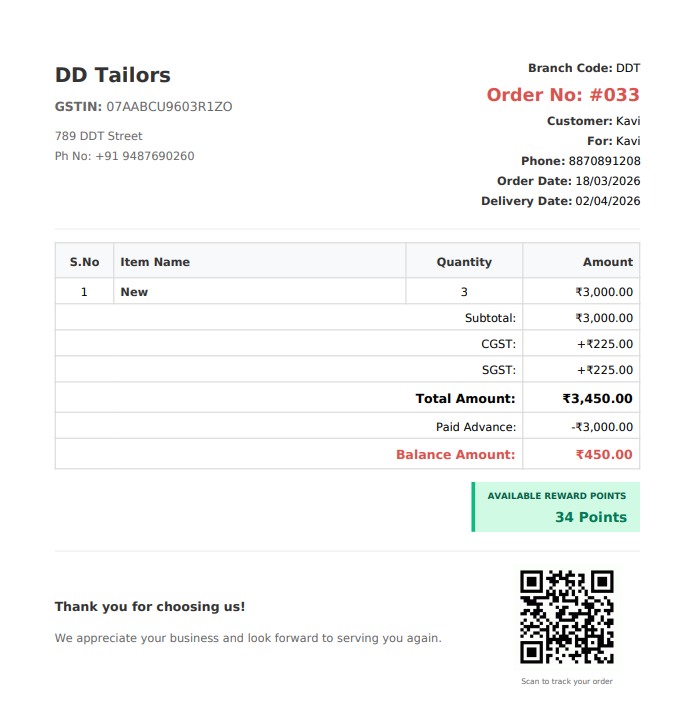
Customer invoice showing order items and payment details
2. Staff Invoice (Bill with Staff)
Invoice showing staff work allocation and earnings for orders:
- Displays which staff worked on the order
- Shows customer information
- Shows items assigned to a specific staff member
- Includes the work instruction of that item
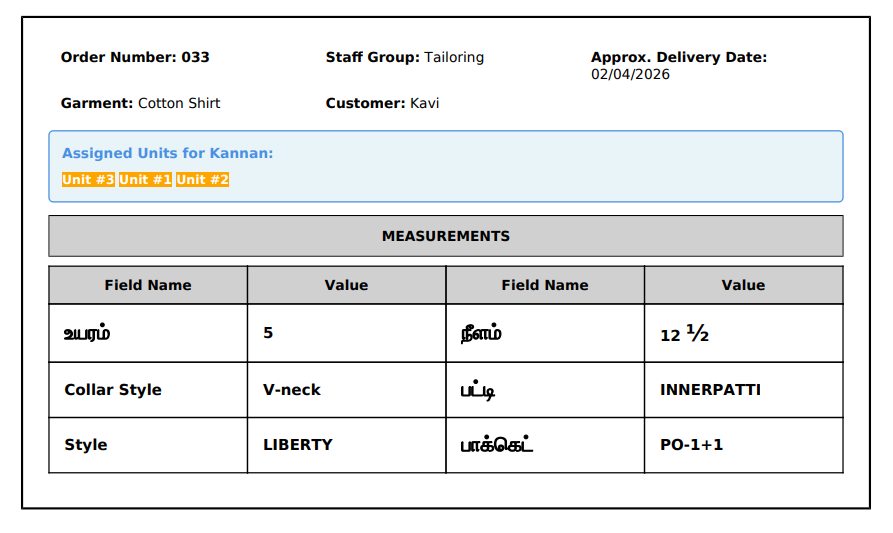
Staff invoice showing work allocation and payment breakdown
3. Staff Invoice (Bill without Staff)
Simplified invoice format without staff-specific details:
- Shows order items without staff attribution
- Used when staff details are not relevant
- Cleaner format for internal records
- Useful for orders without staff assignments
- Shows only the work instructions of that order
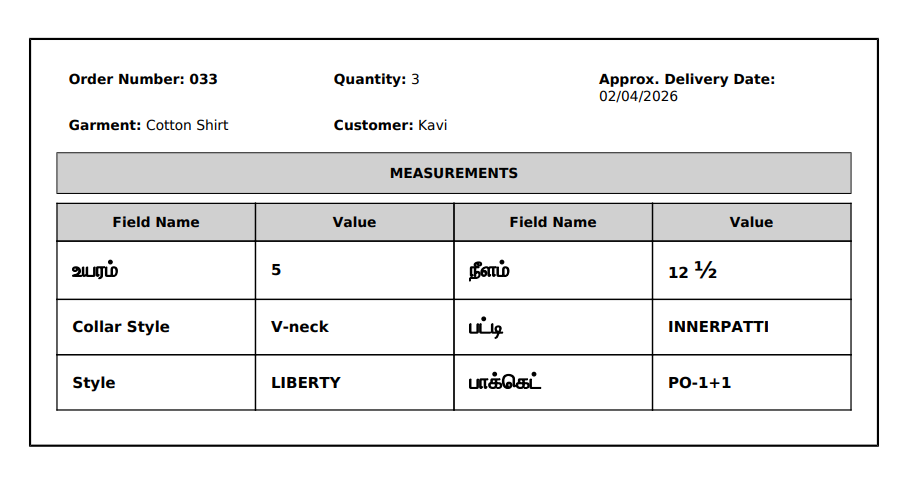
Staff invoice without staff attribution details
Bill Formats
Customer invoices can be generated in two formats:
Separate Bills
Generate individual invoices:
- Show only customer invoice and staff bill
- Give bills for each staff member with the work instructions
- For customers they receive a summary of their order
Combined Bills
Generate a single consolidated invoice:
- Show customer invoice and the work instructions in a single document
- Easy to manage and print
- Preferred for customers who want a comprehensive view of their order
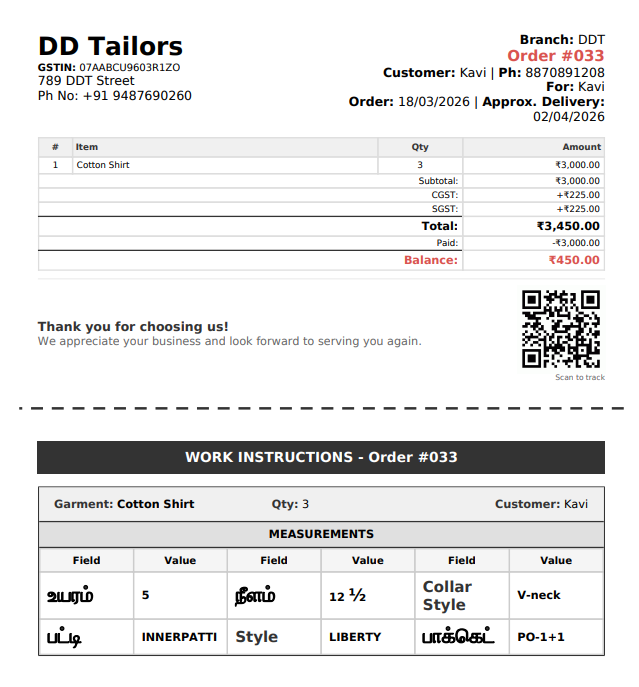
Combined invoice with all order items on one bill
Configure your preferred bill type (Separate or Combined) in Settings → Store Settings → Billing Settings. This setting applies to all new invoices.
Order Payment Status
Orders track payment status automatically:
No payments recorded yet
Some payment received, balance due
Full amount has been collected
Billing Settings
Configure billing options in Settings → Store Settings → Billing Settings:
- Bill Type - Choose between Separate or Combined bills
- Bill Format - Select A4, A5, B4, B5, or Letter format
- Footer Greeting - Add custom thank you message
- Footer Description - Include additional footer text
- Tax Rules - Configure GST, CGST, SGST in Settings → Tax Rules
Tip: Record payments immediately when received. This helps track cash flow and know exactly which customers have paid.
Best Practices for Billing
💡 Record Payments Promptly
Add payments as soon as you receive them to keep accurate records and know outstanding balances.
💡 Use Customer Credit
Accept advance payments and store as customer credit for future orders.
💡 Configure Tax Rules
Set up your GST/tax rules correctly in Settings so invoices include accurate tax amounts.
💡 Choose Right Bill Format
Select A4 for detailed invoices, A5 for compact bills, or thermal for quick receipts.
Frequently Asked Questions
Can I create an invoice without an order?
How do I add GST/tax to invoices?
Can I edit an invoice after generating it?
What's the difference between customer bill and staff bill?
What's Next?
Now that you understand billing, explore related features: