Settings & Configuration
Customize DD Tailors to match your business needs. Configure settings for your store, tax rules, working days, billing preferences, and more.
Settings Overview
DD Tailors has three main settings areas:
- Store Settings -General settings, Holidays, Working days, Billing settings
- Tenant Settings - Business information, Operational Settings, Tax groups, Customer credits, Notification settings
- Storefront Settings - Public-facing store customizations and online booking
Store Settings
Store settings control how your individual store operates within DD Tailors.
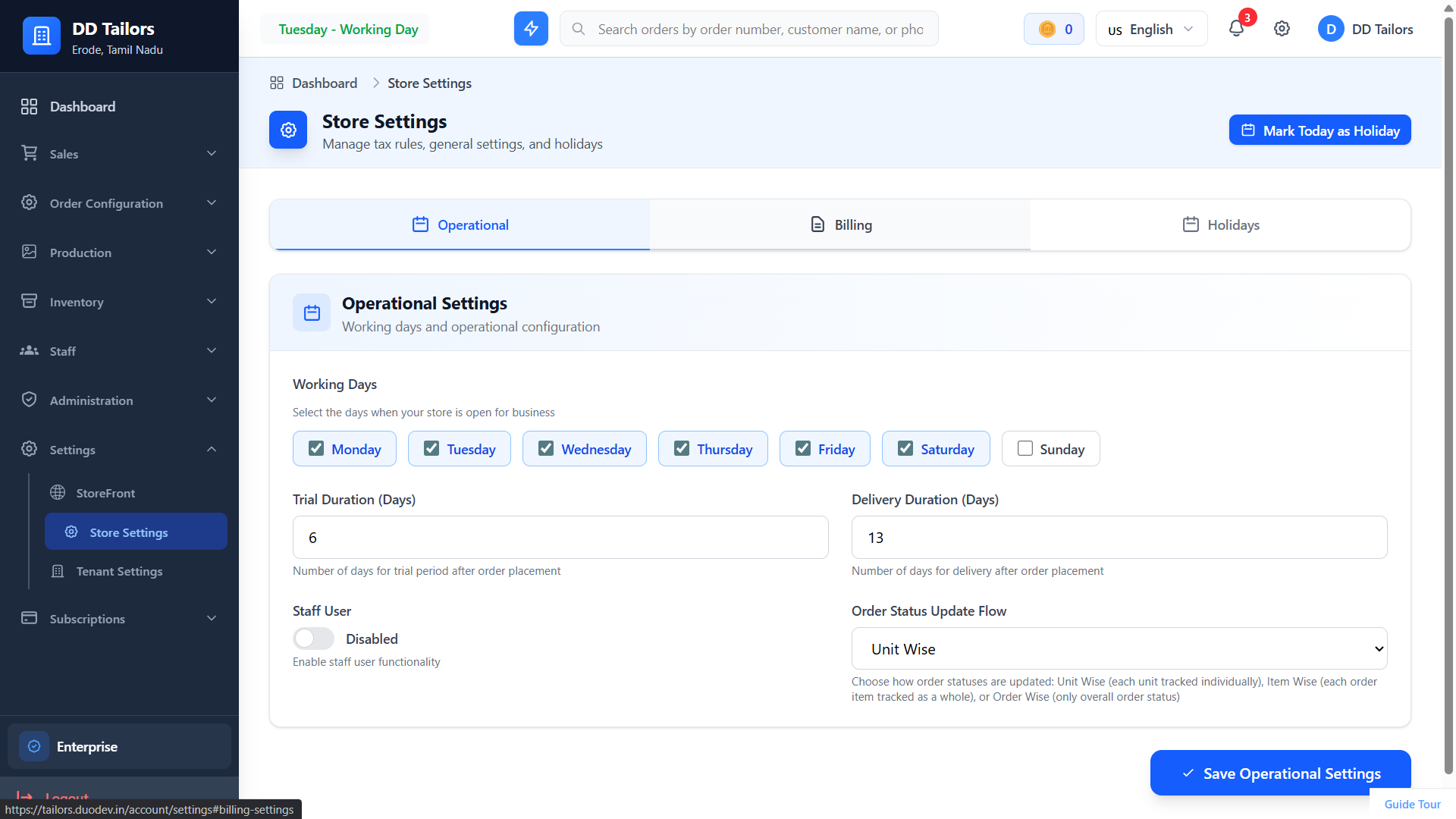
Store settings page
Working Days & Holidays
Define your business operating schedule:
- Working Days - Select which days your shop operates (Mon-Sun)
- Holidays - Add specific dates as holidays
- Quick Toggle - Mark today as holiday/working day instantly
- Working days affect delivery date calculations
General Settings
Configure core business parameters:
- Trial Duration Days - Days for trial fitting (default: 5)
- Delivery Duration Days - Default delivery period (default: 12)
- Order Number Start - Starting number for order IDs
- Staff User Setting - Allow staff to be system users
- Order Status Update Flow - Unit-wise or order-wise status updates
Billing Settings
Customize invoice and bill generation:
- Bill Type - Separate bill or combined bill
- Bill Format - A4, A5, or thermal receipt format
- Footer Greeting - Custom thank you message
- Footer Description - Additional footer text
Tenant Settings
Tenant settings control your overall business identity and default configurations across all stores.
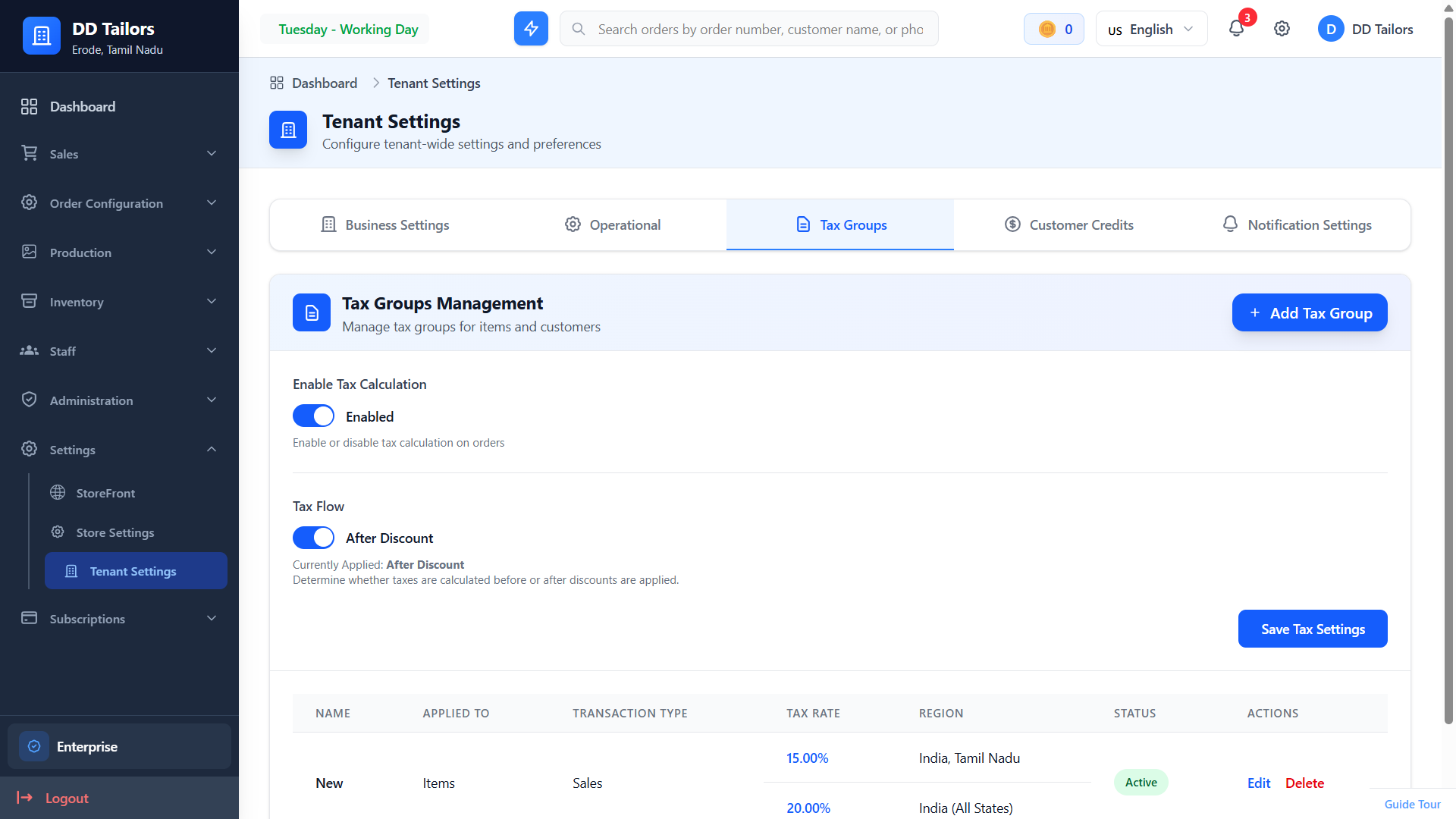
Tenant settings page
Tenant Settings has five main tabs for comprehensive business configuration:
1. Business Settings
Manage your business identity and contact information:
Business Identity
- • Business Name - Official name of your tailoring shop
- • Business Slug - URL-friendly identifier for storefront
- • Business Logo - Upload logo (PNG, JPG, GIF up to 2MB)
- • Logo is Wordmark - Toggle if logo contains business name
Location Details
- • Country - Select business country
- • State/Province - Select state or province
- • City - Select business city
- • Street Address - Complete street address
- • Postal Code - Business postal/ZIP code
- • Timezone - Business operating timezone
Contact Information
- • Contact Numbers - Add multiple phone numbers (Ph No, Tel, WhatsApp, Fax)
- • Visibility Control - Choose where each number appears (Bill, Storefront)
- • GSTIN Number - GST identification for tax purposes
2. Operational Settings
Configure business operations and working schedule:
- • Working Days - Select which days your shop operates (Mon-Sun)
- • Trial Duration - Days for trial fitting (default: 5 days, range: 1-30)
- • Delivery Duration - Days for order completion (default: 12 days, range: 1-60)
- • Staff User Feature - Enable staff as system users (requires subscription)
3. Tax Groups
Comprehensive tax management system:
Tax Settings
- • Enable Tax Calculation - Master toggle for entire tax system
- • Tax Flow - Apply tax before or after discounts
Tax Groups Management
- • Create tax groups for Items or Customers
- • Set transaction type (Sales or Purchase)
- • Define tax rates (0-100%)
- • Configure region-based rates (Country, State, or All States)
- • Enable/disable individual tax groups
- • View, edit, and delete existing groups
4. Customer Credits
Configure loyalty points and customer rewards system:
- • Enable Credit System - Master toggle for loyalty program
- • Currency Per Points - Rupees spent to earn 1 point (default: ₹100 = 1 point)
- • Maximum Points Earn Per Order - Cap on points from single order (default: 100)
- • Maximum Points Use Per Order - Cap on redemption per order (default: 50)
- • Points Value - Points needed for ₹1 discount (default: 1 point = ₹1)
- • Minimum Order Value - Minimum purchase to earn points (default: ₹500)
- • Minimum Points for Redemption - Minimum balance to redeem (default: 10)
- • Points Expiry Days - Days until points expire (default: 365, 0 = never)
Customer spends ₹1,000 → Earns 10 points (1000÷100). Can redeem 10 points → Worth ₹10 discount (10÷1). Points expire after 365 days.
5. Notification Settings
Control which notifications appear in header and notifications page:
- • Individual toggle for each notification type
- • Enable/disable notifications selectively
- • Controls visibility in notification bell and notifications page
- • Dynamically configured based on system features
Storefront Settings
Storefront settings control your public-facing online presence.
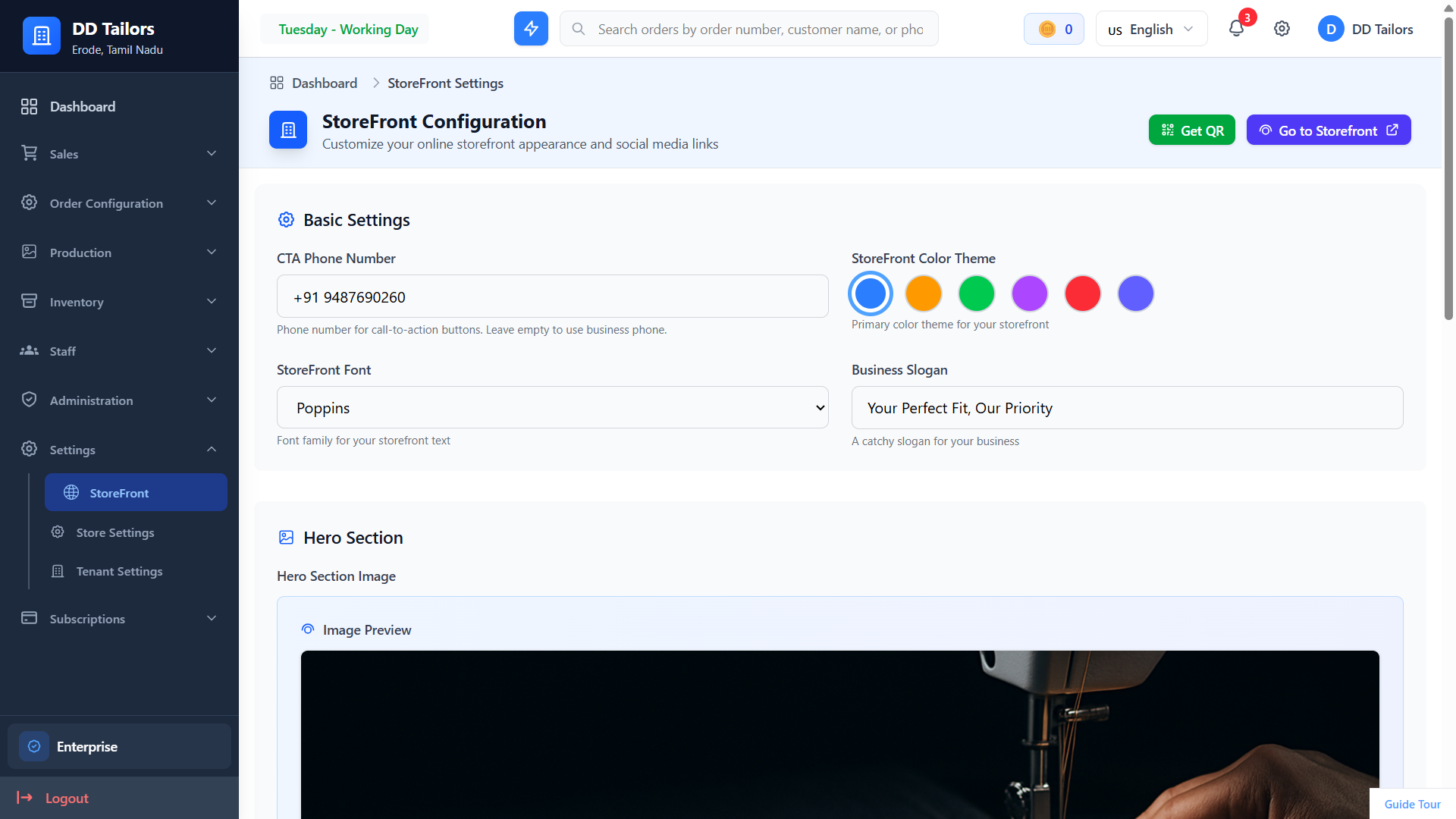
Storefront settings page
Storefront Features
- Enable/Disable Storefront - Toggle public store visibility
- Store URL - Custom subdomain for your storefront
- Store Banner - Upload banner image for your storefront
- About Section - Describe your business to customers
- Contact Information - Display contact details
- Social Media Links - Link to your social profiles
Other Configurations
Account Settings
Manage your personal account:
- Profile - Update name, email, profile picture
- Password - Change your password
Frequently Asked Questions
How do I add my store logo to invoices?
Can I change working days after setting them?
How do I set up GST/tax rates?
What's Next?
Now that you've configured settings, here's what to explore: