Dashboard Overview
The Dashboard is your command center for managing your tailoring business. Get a complete overview of your operations, key metrics, and recent activities at a glance. The dashboard displays different information based on your role - Admin or Staff.
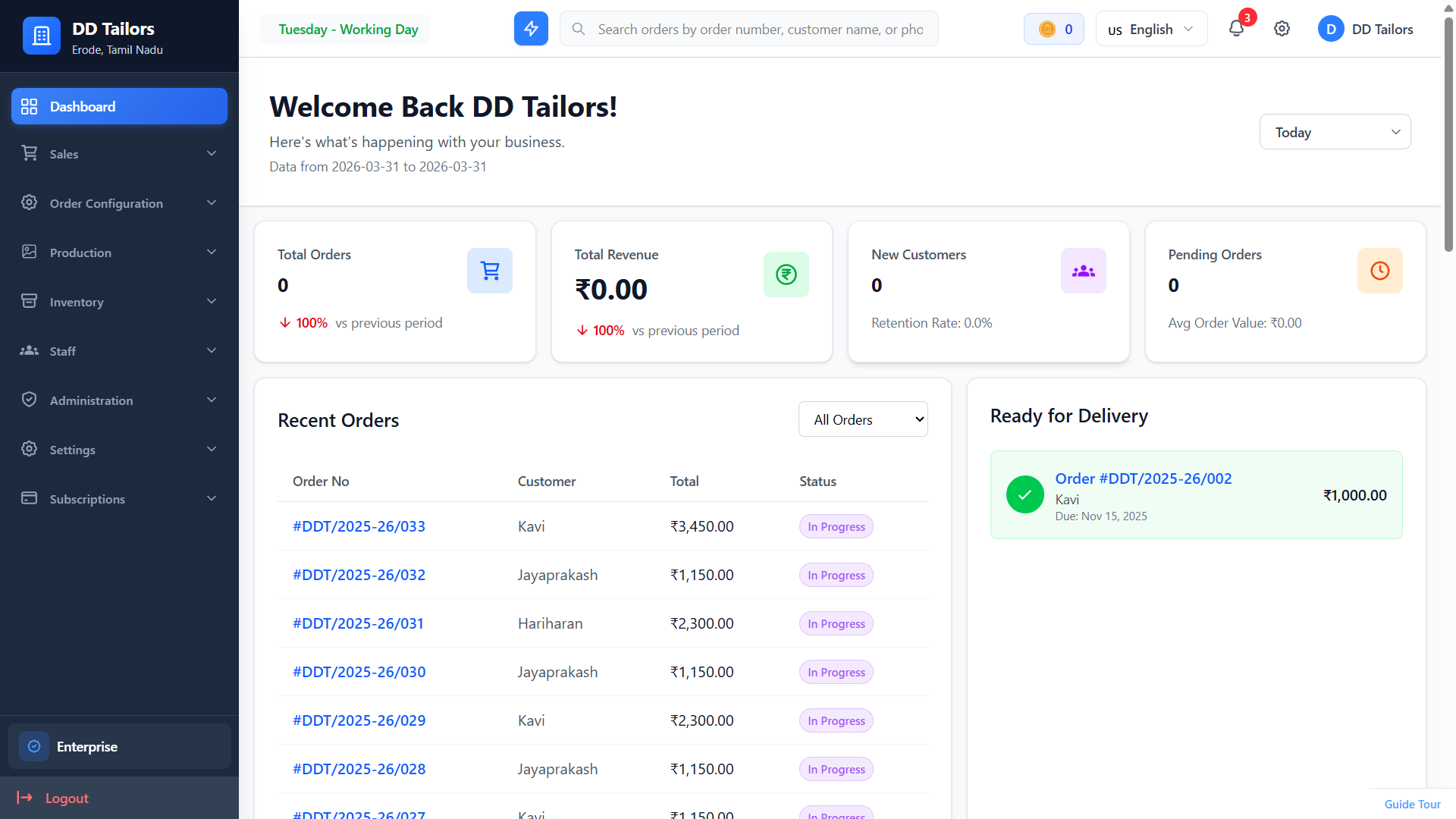
Dashboard Overview with metrics cards
Time Period Filter
Use the dropdown at the top right to filter dashboard data by time period:
- Today - View today's statistics only
- This Week - Current week's data
- This Month - Current month's data
- Last 3 Months - Quarter view
- Last 6 Months - Half-year view
Admin Dashboard
Key Metrics Cards
At the top of your dashboard, you'll see four key metrics with trend indicators:
- Total Orders - Orders in the selected period with percentage change vs previous period
- Total Revenue - Revenue collected in the selected period (₹)
- New Customers - New customers acquired with retention rate
- Pending Orders - Orders awaiting completion with average order value
Store Performance (Multi-Store)
If you have multiple stores, see a comparison of performance across all stores:
- Orders count per store
- Revenue per store
- Current store highlighted
- Store code identification
Sales Chart
Visual representation of sales performance over the selected time period with trend analysis.
Order Status Distribution
Pie chart showing breakdown of orders by status and top performing garment items.
Staff Dashboard
Staff members see a personalized view with their work metrics:

Staff dashboard with assigned tasks
- Assigned to Me - Order units assigned for work
- Created by Me - Orders you have created
- Completed Tasks - Units completed with completion rate
- Pending Tasks - Outstanding work with overdue count
Salary Overview (Staff)
Staff with salary permissions can view their earnings:
- Period Earnings - Amount earned in the period (fixed or work-based)
- Amount Received - Settlements already paid
- Balance - Outstanding amount to receive
- Attendance Days - Working days marked present
Dashboard Navigation
The main navigation menu (sidebar) provides access to all features:
Main Menu Items
- Dashboard - Home and overview page
- Orders - Manage all customer orders
- Quotations - Create and manage quotes
- Customers - View and manage customer profiles
- Garments - Garment types and measurements
- Inventory - Track materials and supplies
- Staff - Manage staff and assignments
- Reports - Analytics and insights
- Settings - Configure your business
Interactive Tour
First-time users are guided through an interactive tour explaining each dashboard section. The tour can be restarted from the guide tour button in the footer .
Note: Dashboard is optimized for both desktop and mobile devices. The layout automatically adjusts for smaller screens.
Frequently Asked Questions
Why don't I see all the dashboard widgets?
How do I change the time period for dashboard statistics?
Can I restart the dashboard tour?
Why are my statistics showing zero?
What's Next?
Now that you understand the dashboard, here's the recommended next step: