Family Members Management
Store measurements and preferences for multiple family members under a single customer account. Perfect for households where you serve multiple people.
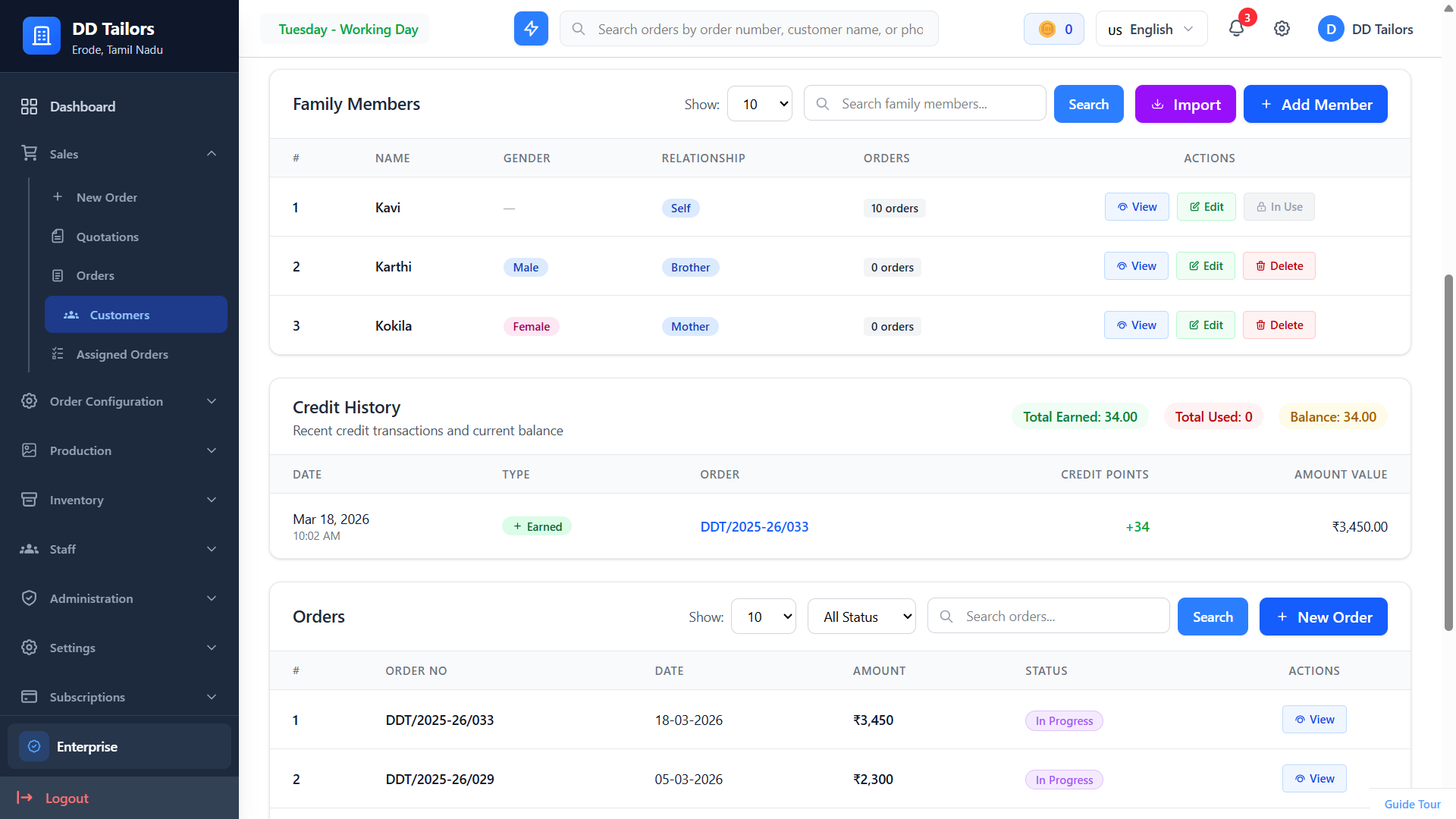
Family members under a customer profile
What are Family Members?
Family Members allow you to link multiple individuals to one customer account:
- Shared Billing - One account holder for the whole family
- Individual Measurements - Each person has their own measurement profile
- Order Tracking - See which orders belong to which family member
- Simplified Management - Manage an entire household from one place
A father creates an account and adds his wife, sons, and daughters as family members. All orders are billed to him, but each person has their own measurements stored.
Adding Family Members
- Open Customer Profile - Navigate to the main customer account
- Go to Family Members Tab - Click on the Family Members section
- Click "Add Family Member" - Open the creation form
-
Enter Details:
- Full Name
- Relationship (Spouse, Son, Daughter, Parent, etc.)
- Gender
- Save Family Member - The profile is created and linked
Managing Measurements
Each family member can have their own measurement profiles:
Adding Measurements
- Open the family member's profile
- Go to "Measurements" section
- Update Measurements value, It will be saved automatically
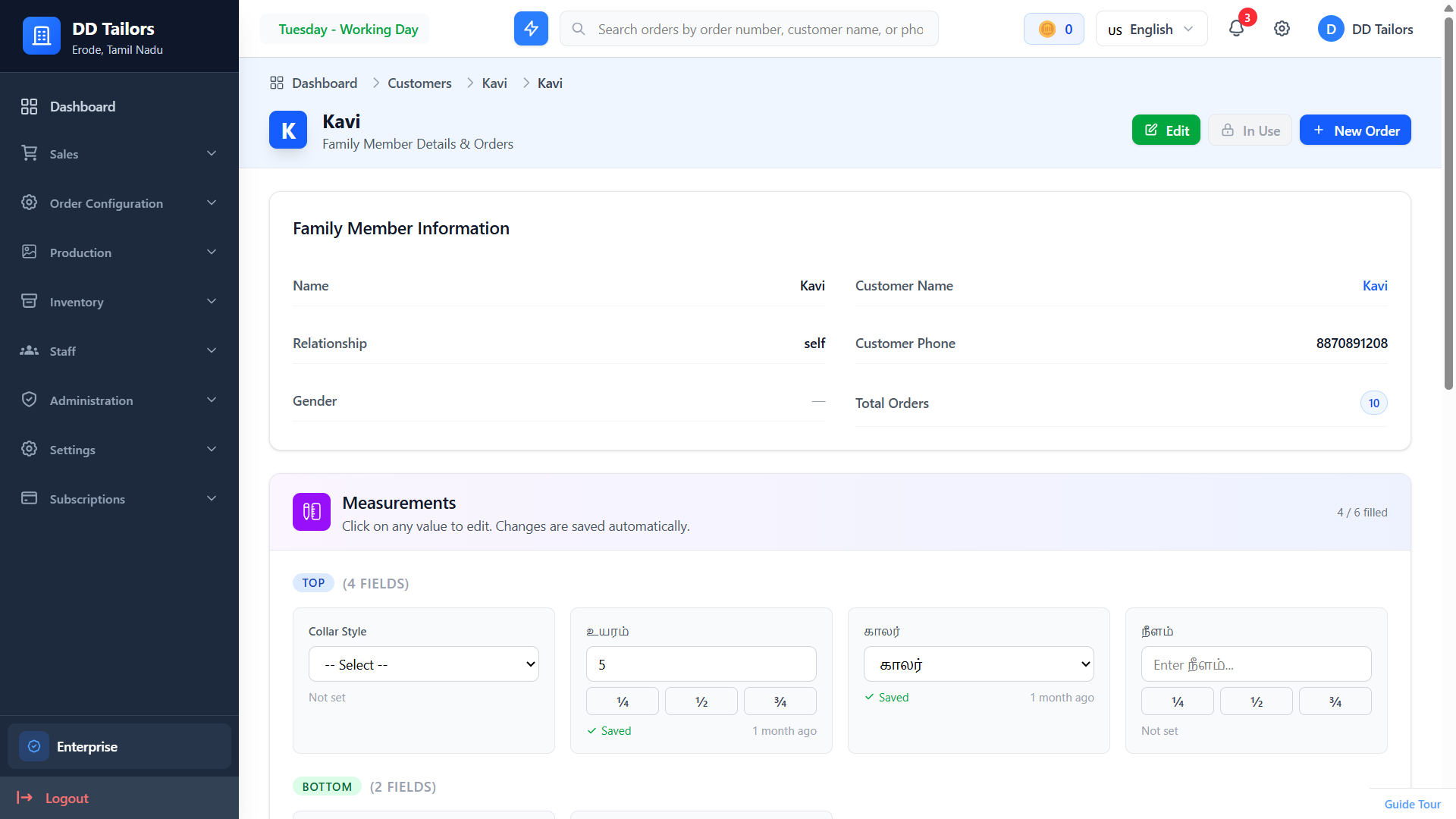
Measurement entry form for a garment
Using Measurements in Orders
When creating an order for a family member:
- Start creating a new order
- Select the main customer account
- Choose which family member this order is for
- Their saved measurements automatically populate
- Review and adjust if needed
- Complete the order
Order History per Family Member
Track orders individually for each family member:
- View complete order history per person
- See measurements used in past orders
- Track preferences and repeat orders
Editing Family Members
Update family member information as needed:
- Open the family member's profile
- Click "Edit Details"
- Update name, relationship, and gender.
- Save changes
Deleting Family Members
If a family member should no longer be linked:
- Open the family member's profile
- Click "Delete"
- Confirm delete
- The family member will be removed from the customer's profile
Note: Family member with existing orders cannot be permanently deleted to maintain order history.
Best Practices
✓ Use Clear Relationship Labels
Clearly identify the relationship to avoid confusion when multiple family members have similar names.
✓ Keep Measurements Updated
Especially for children, remember to update measurements periodically as they grow.
✓ Use Family Members for Shared Accounts
If multiple people in a household are ordering, using family members keeps everything organized under one account.
Frequently Asked Questions
Can the main customer also be a family member?
How many family members can I add?
Can I transfer a family member to another customer?
What happens if I delete a family member?
What's Next?
Now that you understand the basics, explore these features: