Quotations Management
Create professional quotations for potential customers and easily convert them to confirmed orders when approved. Streamline your sales process with DD Tailors quotations system.
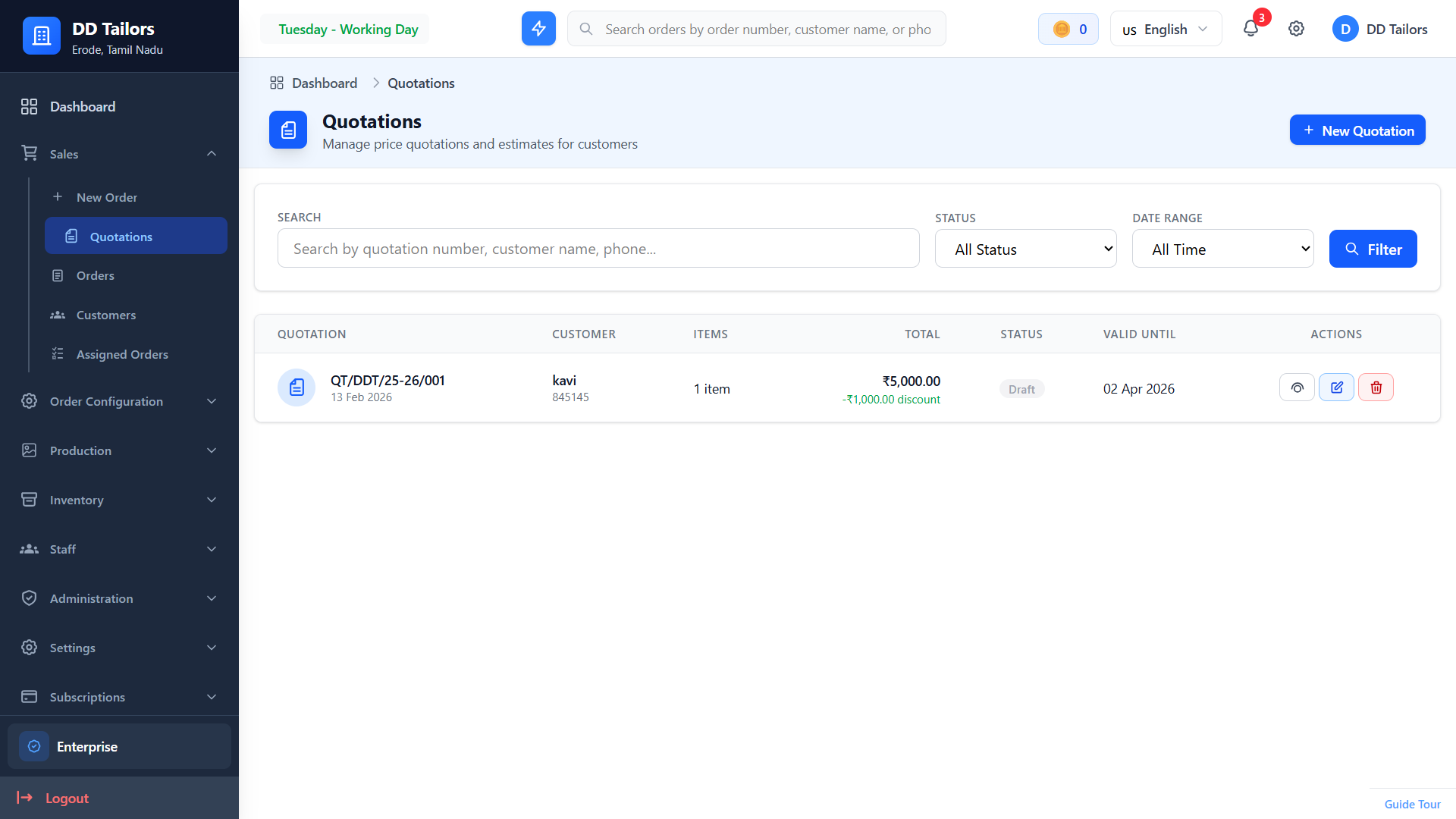
Quotations list with status filters
What are Quotations?
Quotations are preliminary cost estimates provided to customers before they commit to an order. They help you:
- Provide Cost Estimates - Give customers a clear price breakdown upfront
- Track Potential Sales - Monitor which quotes convert to orders
- Professional Presentation - Send formatted quotations to customers
- Quick Order Conversion - Convert accepted quotes to orders with one click
- Quote History - Keep records of all quotations for reference
Creating a New Quotation
Follow these steps to create a quotation:
- Navigate to Quotations - Go to Quotations from the main menu
- Click "New Quotation" - Open the quotation creation form
-
Select or Create Customer:
- Choose existing customer from dropdown
- Or create new customer profile on the spot
-
Add Items:
- Garment Type (Shirt, Pant, Dress, etc.)
- Description and specifications
- Unit Price
- Quantity
- Set Validity Period - How long is this quote valid?
- Add Notes - Special terms, conditions, or instructions
- Apply Discounts - Add percentage or fixed amount discounts (optional)
- Review Total - Check calculated subtotal, discounts, taxes, and total
- Save Quotation - Your quote is now saved in draft status
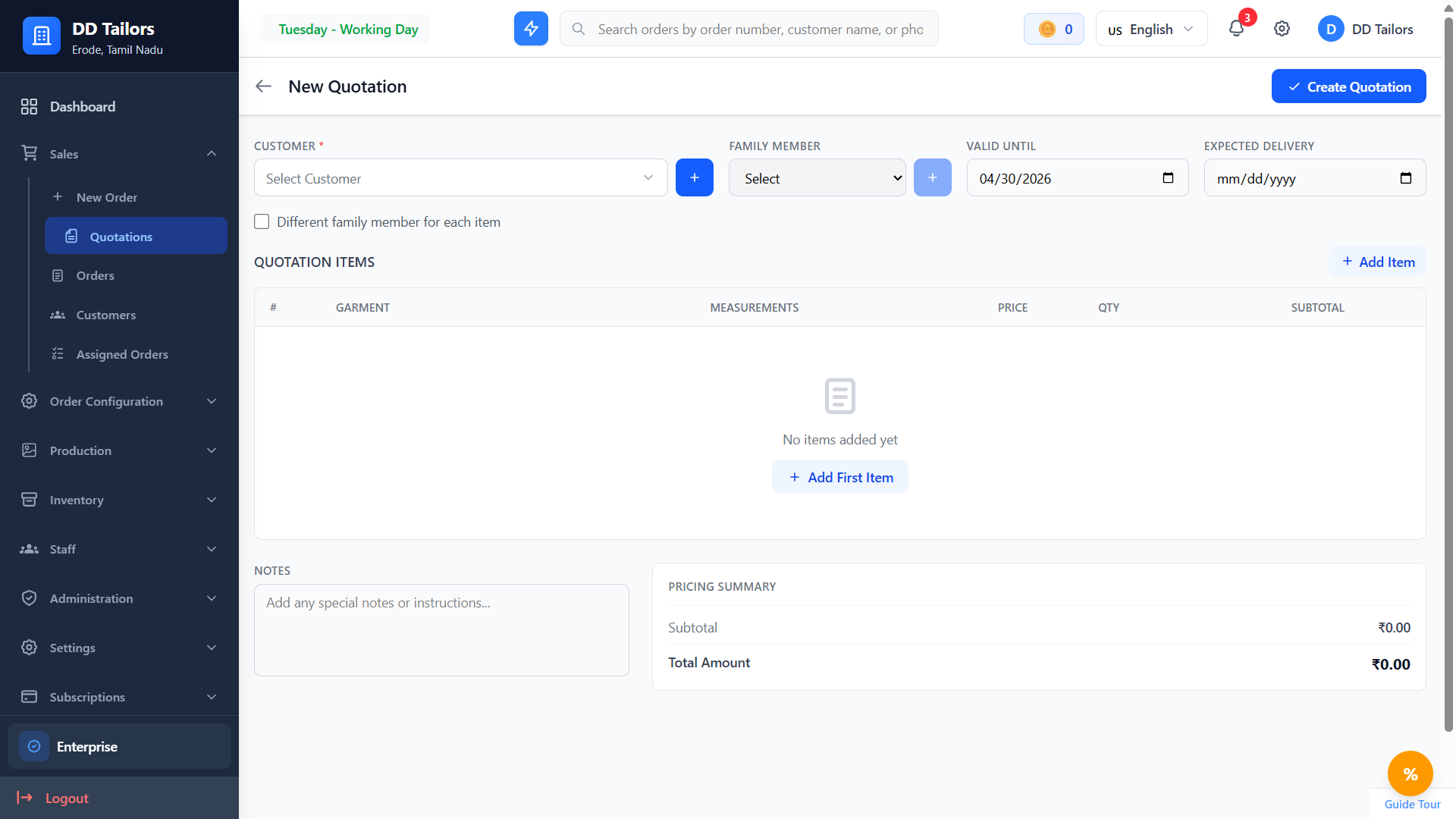
Quotation creation form with items
Quotation Status Workflow
Quotations move through these statuses:
Draft
Quotation is being prepared.
Sent
Quotation shared with customer, awaiting response.
Accepted
Customer approved - ready to convert to order.
Rejected
Customer declined the quotation.
Expired
Quotation validity period has passed.
Converted
Quotation has been converted to an order.
Converting Quotations to Orders
When a customer accepts your quotation, convert it to an order instantly:
- Open the accepted quotation
- Click "Convert to Order" button
- Review the order details (all data is pre-filled from quotation)
- Add any additional information:
- Delivery date
- Measurements (if not already added)
- Staff assignments
- Trial scheduling
- Click "Create Order" - The quotation is marked as "Converted" and a new order is created
Note: The original quotation remains in the system for reference and is linked to the created order.
Revising Quotations
If a customer requests changes to a quotation:
- Open the original quotation
- Click "Create Revision" button
- A new version is created with the same content
- Make necessary changes to items, pricing, or terms
- Save and send the revised quotation
- The system maintains version history for reference
Quotation Reports & Analytics
Track the effectiveness of your quotations:
- Conversion Rate - Percentage of quotations that become orders
- Average Quote Value - Typical quotation amounts
- Response Time - How quickly customers accept or reject quotes
- Quote by Status - See how many quotes are in each stage
- Lost Opportunities - Analyze rejected or expired quotations
Best Practices
✓ Set Realistic Validity Periods
Give customers enough time to decide (7-14 days typical) but not so long that pricing becomes outdated.
✓ Be Detailed in Item Descriptions
Clear descriptions prevent misunderstandings and reduce quote revisions.
✓ Follow Up on Sent Quotations
Actively follow up with customers after sending quotations to increase conversion rates.
✓ Include Terms and Conditions
Add payment terms, delivery conditions, and cancellation policies to avoid disputes later.
Frequently Asked Questions
What happens when a quotation expires?
Can I edit a quotation after sending it?
How do I convert a quotation to an order?
Can I apply discounts to quotations?
What's Next?
Now that you understand the basics, explore these features: