Staff Management
Manage your tailoring team efficiently with DD Tailors staff management system. Track employee profiles, assignments, attendance, earnings, and settlements all in one place.
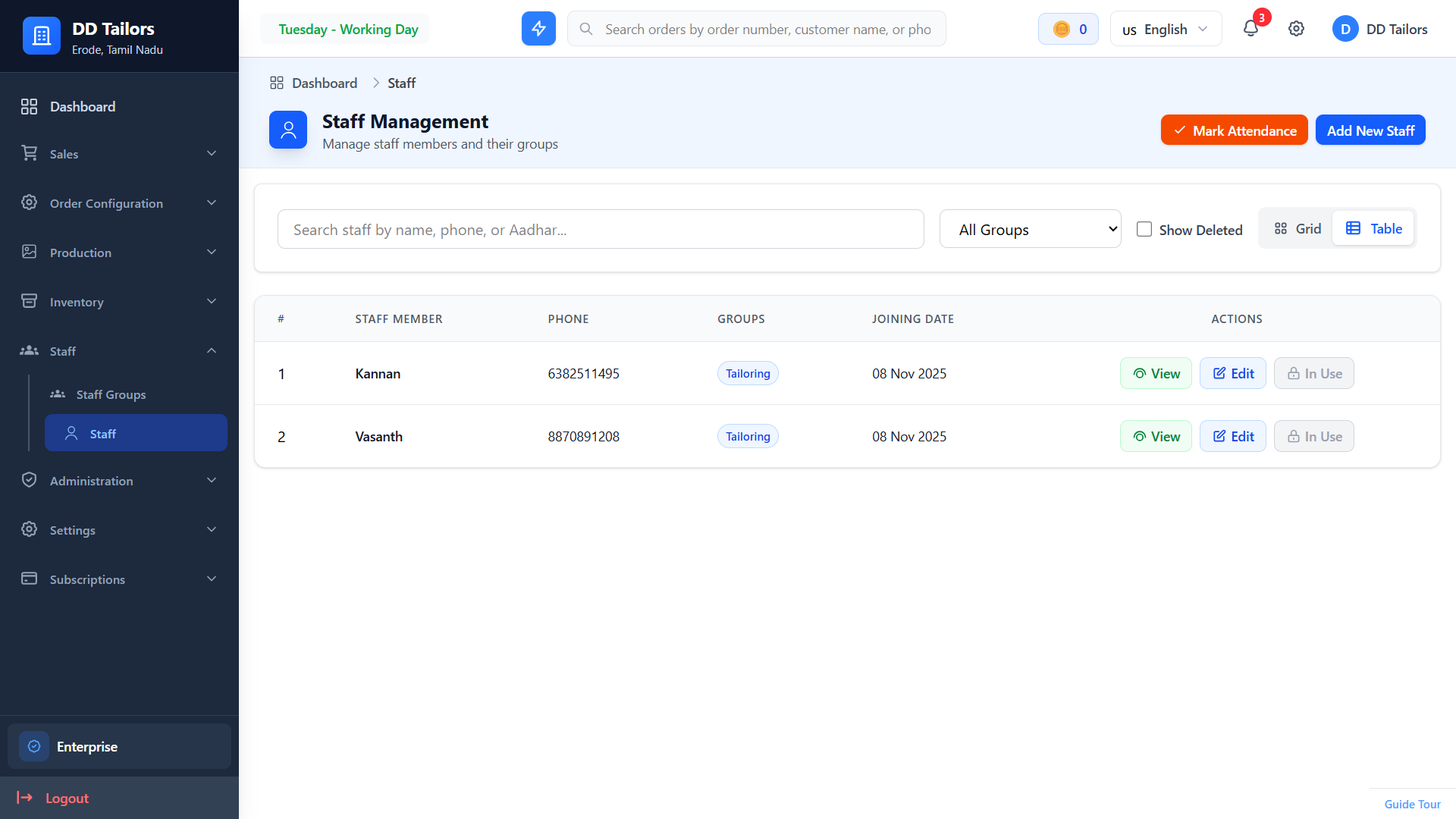
Staff members list with roles
What is Staff Management?
The staff management module helps you organize and track all aspects of your tailoring workforce, including:
- Employee Profiles - Store complete staff information and documents
- Staff Groups - Organize employees by skills and roles
- Work Assignments - Assign specific order items to staff members
- Attendance Tracking - Monitor staff presence and working hours
- Earnings Calculation - Track earnings based on completed work
- Settlements - Manage salary payments and reconciliation
Staff management features may require a specific subscription plan. Check your plan's feature access in Settings → Subscription.
Adding New Staff Members
Create staff profiles to track your team members:
- Navigate to Staff - Go to Staff section from the main menu
- Click "Add New Staff" - Click the button to open the staff creation form
-
Enter Basic Information:
- Full Name
- Phone Number
- Email Address
- Address Details
- Date of Joining
- Assign Staff Group - Select the appropriate skill group (Master Tailor, Junior Tailor, etc.)
- Set Salary Method - Choose payment structure (Fixed, Work-based)
- Upload Documents - Add identification and employment documents (optional)
- Click "Save Staff" - Staff member is now added to your system
Staff Groups
Organize your staff into groups based on skills. Staff groups help you:
- Assign work based on skill requirements
- Set different rates for different skill levels
- Filter and search staff by expertise
Creating Staff Groups
- Go to Staff Groups from the main menu
- Click "Create New Group"
- Enter group name (e.g., "Master Tailors", "Finishing Team", "Embroidery Specialists")
- Save the group
Assigning Work to Staff
Assign specific order items or units to staff members to track who is working on what:
- Open an Order - Navigate to the order you want to assign
- Select Order Item - Click on the specific item to assign
- Click "Assign Staff" - Open the staff assignment dialog
- Select Staff Member - Choose the employee who will work on this item
- Set Units/Quantity - Specify how many units are assigned
- Save Assignment - The work is now assigned and tracked
Note: Staff can see their assigned work in their personal dashboard, making it easy to track what needs to be completed.
Attendance Tracking
Keep track of when your staff members are present and working:
Recording Attendance
- Navigate to Staff → Attendance
- Select the date
- Mark each staff member as Present, Absent, or Half-day
- Save the attendance record
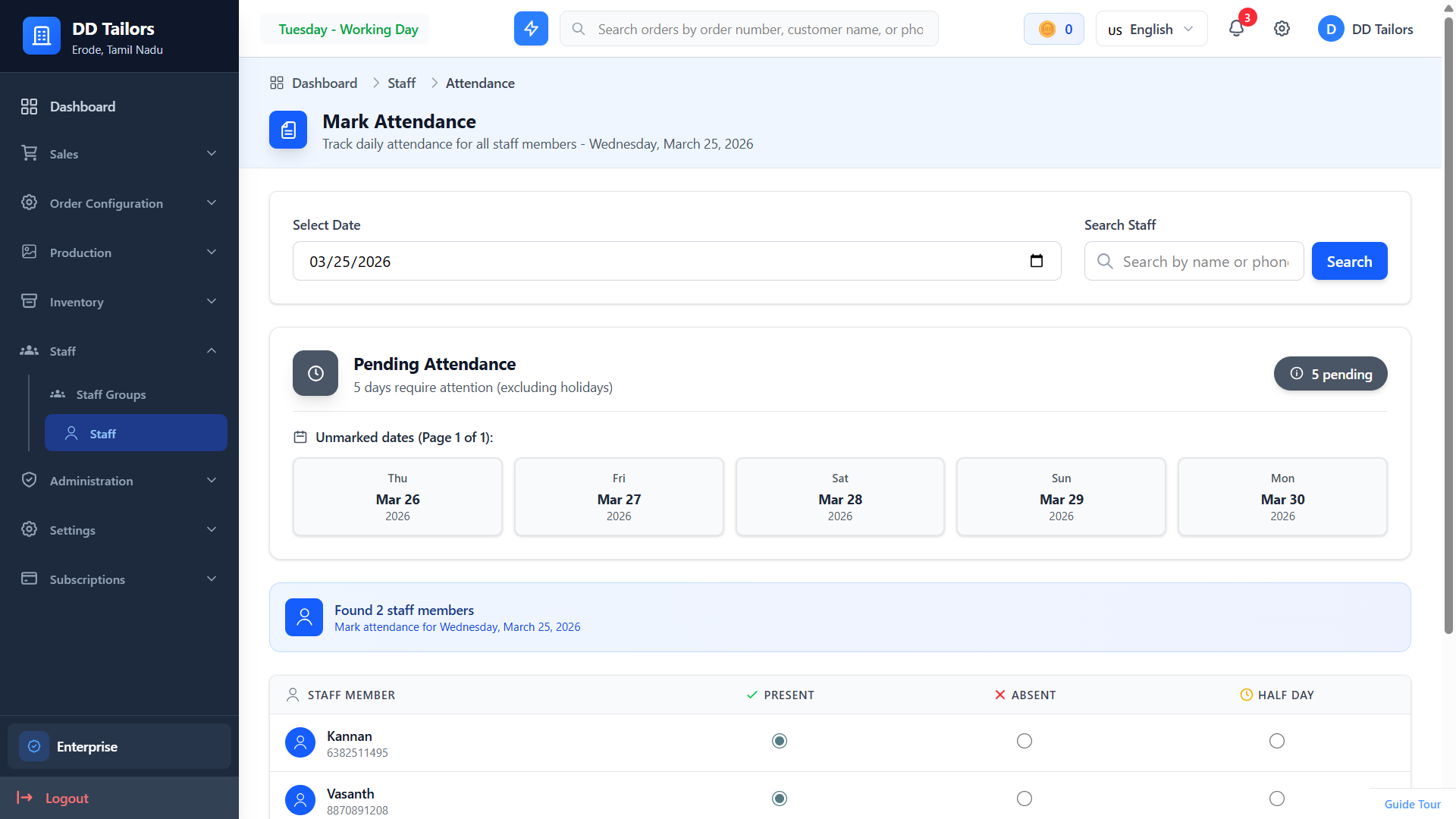
Attendance marking interface
Viewing Attendance Reports
Generate attendance reports to analyze staff presence patterns:
- Go to Reports → Attendance Report
- Select date range
- Filter by staff member
- View summary statistics (total present days, absent days, percentages)
- Export as PDF for records
Earnings & Settlements
Track staff earnings based on their work and process salary payments:
Salary Methods
Fixed Salary
Monthly or weekly fixed amount regardless of work completed.
Work-Based
Earn based on completed order items and units.
Viewing Staff Earnings
- Go to Staff → View Staff Member (click on a staff)
- Scroll to the "Earnings" section
- View breakdown showing:
- Completed order items/units
- Earnings amount for each work
- Total earnings balance
- Use filters to narrow by date range if needed
Processing Settlements
- Go to Staff → View Staff Member (click on a staff)
- Scroll to the "Settlements" section
- Click "Add Settlement"
- Enter the settlement amount
- Add notes or reason (optional)
- Save settlement - Amount is deducted from pending salary
Staff Performance Reports
Generate comprehensive reports to analyze staff performance and productivity:
- Staff Report - View detailed information about each staff member and their performance
- Attendance Report - View attendance patterns and percentages
Best Practices
✓ Regular Attendance Updates
Record attendance daily to maintain accurate records for salary calculation and workforce planning.
✓ Clear Work Assignments
Always assign specific order items to staff members so everyone knows what they're responsible for.
✓ Timely Settlements
Process salary settlements on schedule to maintain staff satisfaction and accurate financial records.
✓ Use Staff Groups
Organize staff into groups for easier management and to assign work based on skill requirements.
Frequently Asked Questions
Can I change a staff member's salary method?
Can staff members access the system?
What's Next?
Now that you understand the basics, explore these features: