Customers Management
Build stronger relationships with your customers. The Customers module helps you maintain detailed customer profiles, manage family members, and track order history.
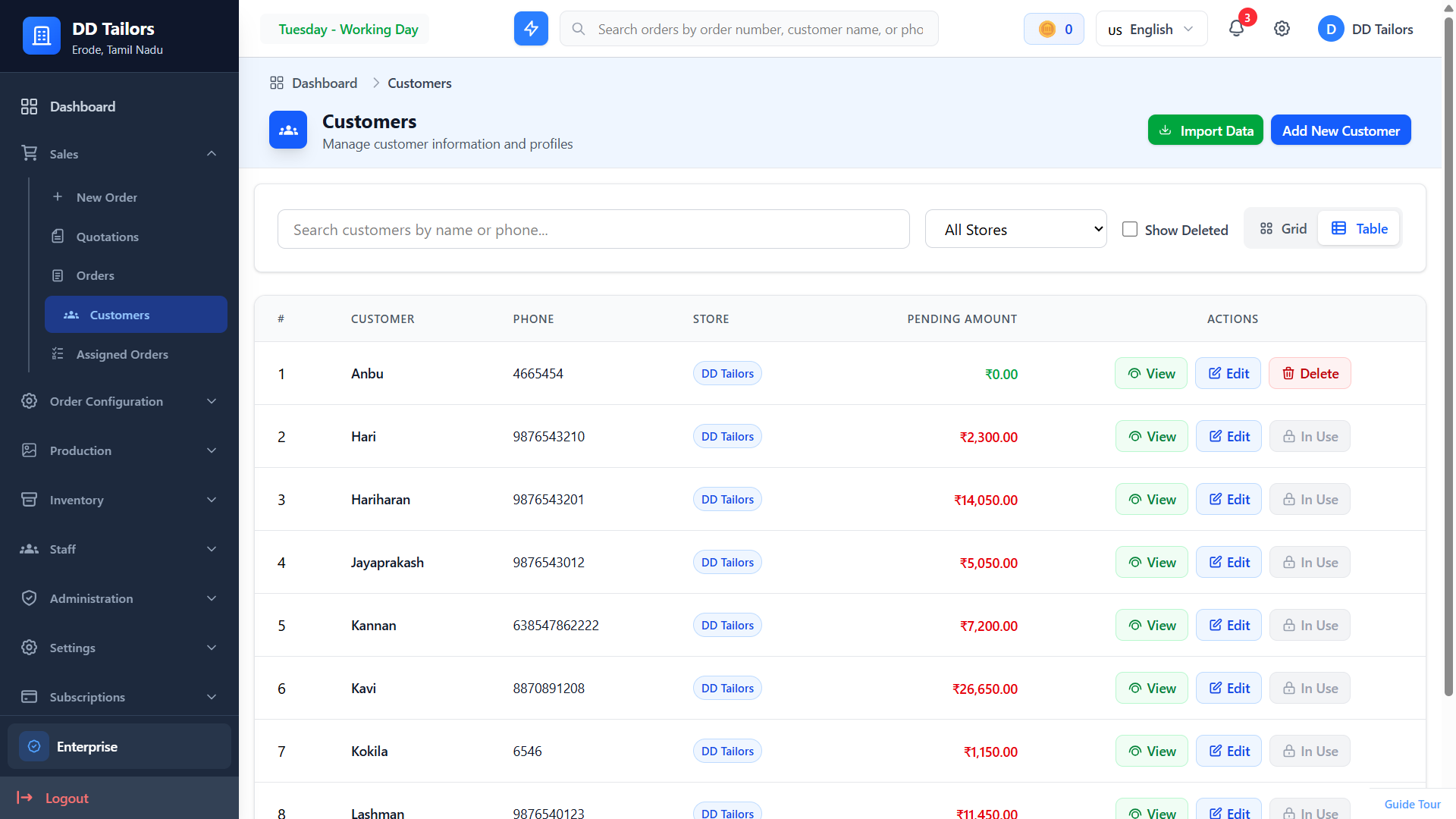
Customers list with search and filters
Getting Started with Customers
What Information Can You Store?
For each customer, you can store and manage:
- Contact Information - Name, phone, email, address
- Family Members - Multiple people linked to one account
- Order History - All past and current orders
- Credit Balance - Advance payments stored as credit
Adding a New Customer
Create a customer profile in a few simple steps:
- Go to Customers from the main navigation
- Click the Add New Customer button
- Enter the customer's name and phone number (required)
- Add email and address (optional)
- Click Save
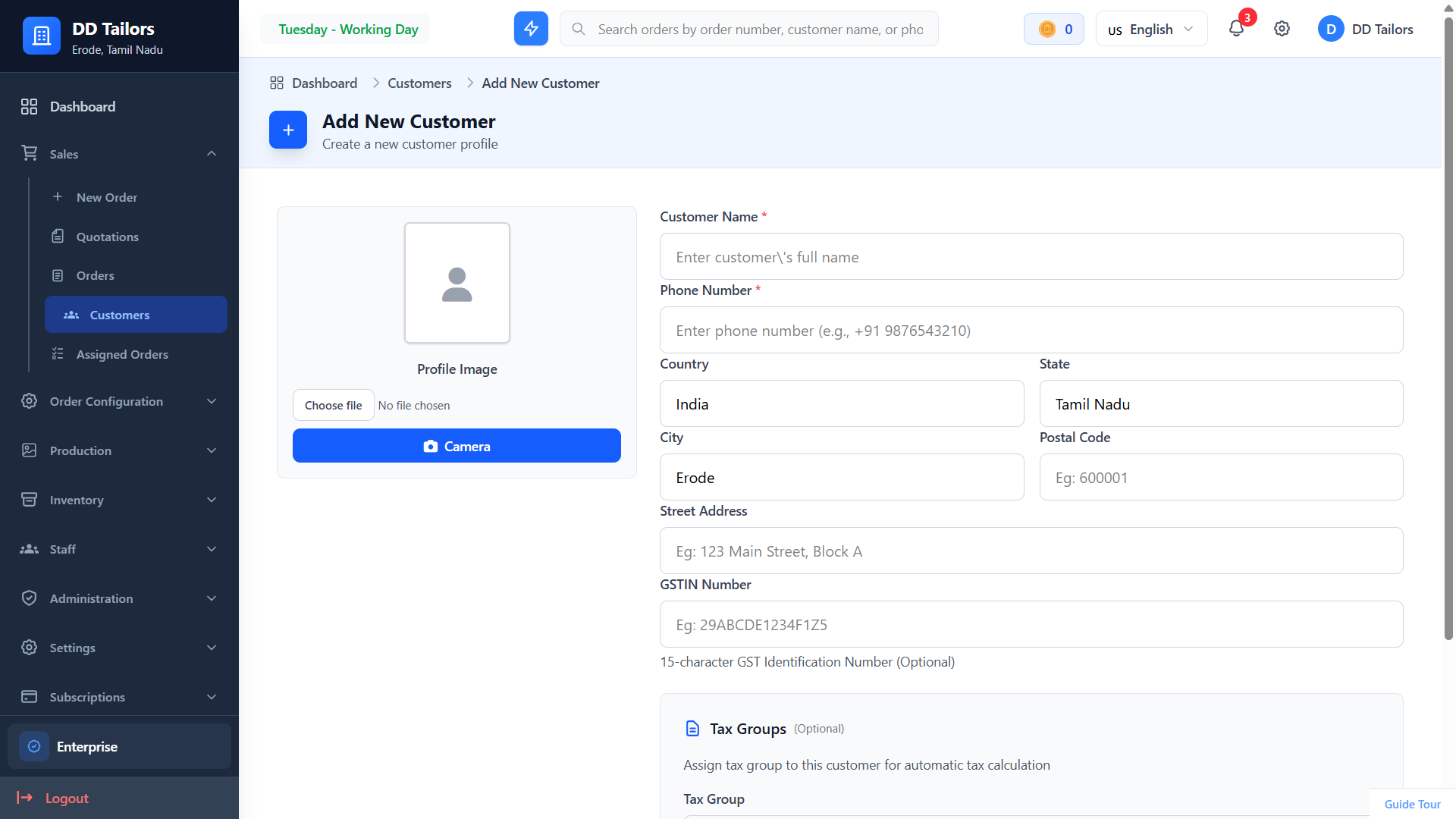
Customer creation form
Managing Customer Profiles
View Customer Profile
Click on any customer's name to view their complete profile including:
- Family members linked to this customer
- Complete order history and delivery dates
- Total amount spent and credit balance
Measurements are stored at the Family Member level. To manage measurements, go to the Family Members section and open the specific family member's profile. See Family Members Documentation for details.
Customer Information Fields
Essential Information
- Name - Full name of the customer
- Phone Number - Primary contact number
- Email - For sending invoices and updates
- Address - For delivery or customer reference
Customer Features
Import Customers
Bulk import customers from Excel/CSV files:
- Click "Import Data" button
- Download the template file
- Fill in customer data following the template format
- Upload the completed file
- Review and confirm the import
Customer Credit Balance
Manage customer credit for advance payments:
- Add credit when customer makes the orders
- Deduct credit when used for orders
- View credit transaction history
- Track outstanding balance per customer
Phone Validation
The system checks for duplicate phone numbers to prevent creating duplicate customer profiles.
Customer Actions
Available Actions
- View Orders - See all orders for this customer
- Family Members - Manage family member profiles
- Credit Balance - Manage customer credit
- Edit - Update customer information
- Delete/Restore - Soft delete and restore customers
Customer Search & Filters
Quickly find customers using various search and filter options:
- Search by Name or Phone - Find customers quickly
- Filter by Store - Show customers from specific stores
- Show Deleted - View soft-deleted customers for restoration
Best Practices for Customer Management
💡 Keep Accurate Measurements
Always take precise measurements. Poor measurements lead to poor fits and unhappy customers. Update measurements for significant changes.
💡 Document Everything
Use the notes section to record special requests, allergies, past issues, or fitting preferences. This context helps deliver better service.
💡 Stay in Touch
Regularly contact customers with order updates and new offerings. Good communication builds loyalty and increases repeat business.
💡 Build Relationships
Remember personal details like favorite styles or occasions. Personal touches build strong, long-term customer relationships.
Frequently Asked Questions
Where do I add measurements for a customer?
Can I import customers from Excel or CSV?
Can I delete a customer who has orders?
What if two customers have the same phone number?
What's Next?
Now that you've set up your customers, here's the recommended next step: